
Split query via interface
It is possible to track the progress of your paid and received splits through the Asaas interface.
In the main menu, on the left side, the Payment Split option will be available if your account has splits configured.
This consultation allows you to view amounts to be paid, amounts received, split statuses, dates related to the charge and split payment, as well as allowing you to apply filters and export the data in CSV.
When to use
Use this page when you need to track splits directly through the Asaas interface.
Some common scenarios include:
- consulting splits paid by your account;
- consulting splits received from other accounts;
- tracking pending, paid, received, or canceled amounts;
- validating whether a split was processed correctly;
- supporting financial reconciliation routines;
- checking transfers related to a charge;
- locating splits by account, invoice number, or charge external identifier;
- exporting data for analysis in spreadsheets or internal reports.
RecommendationUse the interface for operational consultations, one-off analyses, and manual data export.
For automated consultations, internal integrations, or your own dashboards, use the resources available via API.
When to use the API
If you want to consult split statistics via API, use the Retrieve split values endpoint.
This endpoint can be used when your integration needs to:
- retrieve consolidated split values;
- feed internal dashboards;
- create automated reports;
- track financial indicators without depending on manual export;
- integrate split data with external reconciliation systems.
GET /v3/finance/split/statistics
Important
GETcalls must be performed with an empty body.If the request body is filled in, the API may return a
403 Forbiddenerror.
When not to use the interface
Consultation through the interface may not be the best option when your operation needs:
- automatic updates in external systems;
- high-volume financial reconciliation;
- recurring report generation;
- integration with ERP, BI, or accounting system;
- programmatic consultation of statistics;
- operation without access to the web application.
In these cases, use the API whenever the necessary data is available through an endpoint.
Feature availability
The Payment Split option is displayed in the side menu when the account has splits configured.
BaaS accountsThis option is not available for BaaS accounts, since the customer does not have access to the web application.
For BaaS operations, consult the necessary data via API or through the flows defined for the integration.
Prerequisites
To consult splits through the interface, it is necessary that:
- the account has splits configured;
- the user has access to the Asaas account;
- the Payment Split menu is available;
- there are charges with split linked to the operation;
- the charge related to the split has been created correctly;
- the account is accessing the correct environment, Sandbox or Production.
If the menu is not displayed, check whether the account has splits configured and whether the user has adequate access to financial information.
How to access
To consult splits through the interface:
Access your Asaas account
↓
In the side menu, click Payment Split
↓
Choose between Paid splits or Received splits
↓
Use the available search or filters
↓
Analyze the results in the table
↓
Export the data in CSV, if necessary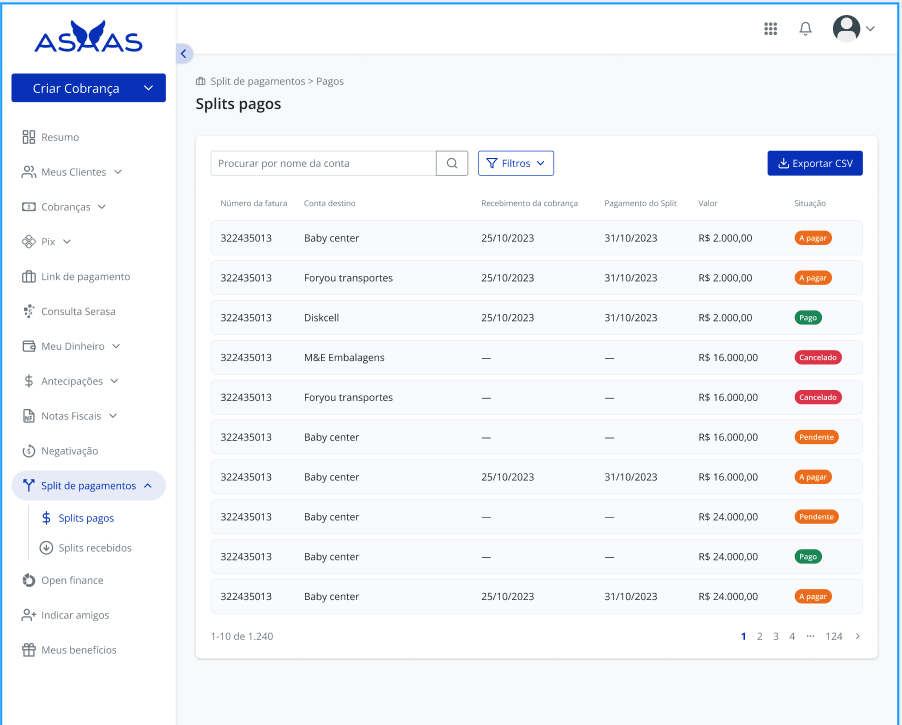
Paid splits
The Paid splits tab presents the amounts that your account must pay or has already paid to other Asaas accounts through split.
This view is useful for tracking transfers made to partners, sellers, service providers, subaccounts, or other receivers linked to your operation.
In the table, it is possible to view information such as:
| Field | Description |
|---|---|
| Invoice number | Identifier of the invoice or charge related to the split. |
| Destination account | Account that will receive or has received the split amount. |
| Charge receipt | Date on which the charge related to the split was received. |
| Split payment | Expected or completed date for split payment. |
| Amount | Split amount. |
| Situation | Current split situation. |
Received splits
The Received splits tab presents the amounts that your account has to receive or has already received through splits configured by other accounts.
This view is useful for receivers that participate in operations with marketplace, platforms, partners, or automated transfers.
In the table, it is possible to view information such as:
| Field | Description |
|---|---|
| Invoice number | Identifier of the invoice or charge related to the split. |
| Origin account | Account responsible for the charge that generated the split. |
| Charge receipt | Date on which the related charge was received. |
| Split payment | Expected or completed date for receiving the split. |
| Amount | Split amount received or to be received. |
| Situation | Current split situation. |
Available filters
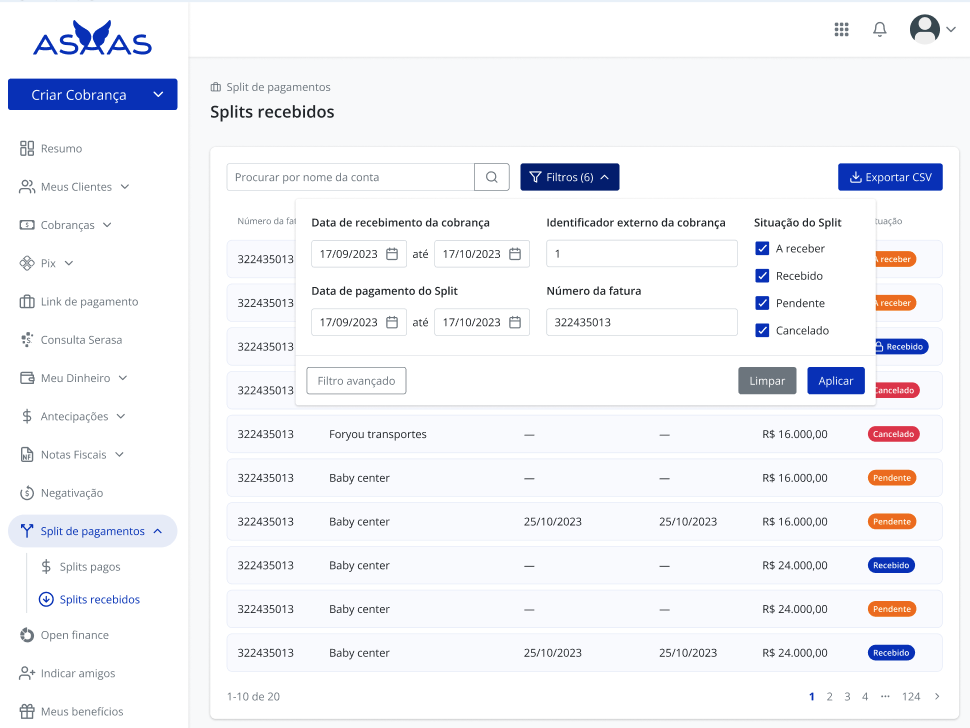
On the consultation screen, it is possible to search and filter data to locate specific splits.
The filters may vary depending on the tab accessed, but generally include:
| Filter | Description |
|---|---|
| Account name | Allows searching splits by the name of the related account. |
| Charge receipt date | Filters splits by the date on which the linked charge was received. |
| Split payment date | Filters splits by the expected or completed split payment date. |
| Charge external identifier | Allows locating splits using the external identifier informed in the charge. |
| Invoice number | Allows consulting splits linked to a specific invoice. |
| Split situation | Filters the results according to the split operational status. |
| Advanced filter | Allows applying additional criteria, when available. |
Split situations in the interface
The interface presents the split situation in a simplified way to facilitate operational tracking.
Some common situations include:
| Situation in the interface | General meaning |
|---|---|
| To pay | Split expected for payment by your account. |
| Paid | Split paid by your account. |
| To receive | Split expected to be received by your account. |
| Received | Split received by your account. |
| Pending | Split still being processed or awaiting a necessary condition. |
| Canceled | Split canceled and not processed. |
Technical statusesIn integrations via API, the technical split statuses may be presented with nomenclatures such as
PENDING,AWAITING_CREDIT,DONE,CANCELLED,REFUSED, andREFUNDED.When reconciling interface data with API data, consider the difference between the situation displayed in the interface and the technical status returned by the API.
CSV export
The screen allows you to export the data in a CSV file.
Use this option when you need to:
- perform manual reconciliation;
- share data with financial areas;
- import information into spreadsheets;
- validate transfers for a period;
- compare interface data with internal records;
- document paid, received, pending, or canceled amounts.
AttentionBefore exporting the CSV, apply the desired filters.
The export must reflect the set of data displayed or selected in the consultation, according to the filters applied on the screen.
Usage example in the interface
A common scenario is checking paid splits in a given period.
Example:
Access Payment Split
↓
Select Paid splits
↓
Filter by charge receipt date
↓
Filter by situation To pay, Paid, or Canceled
↓
Validate the displayed amounts
↓
Export CSV
↓
Compare with the internal financial report
This flow helps identify pending transfer amounts, splits already paid, and any cancellations.
API usage example
To consult split statistics via API, use the split values retrieval endpoint.
Request example:
curl --request GET \
  --url https://api-sandbox.asaas.com/v3/finance/split/statistics \
  --header 'accept: application/json' \
  --header 'access_token: $ASAAS_API_KEY'
RecommendationUse the API when you need to automate consultations or feed internal reports.
Use the interface when you need to validate information visually, apply manual filters, or export one-off data in CSV.
Important rules
When consulting splits, consider the following rules:
- the split is configured in the charge through the API;
- the interface allows tracking paid and received splits when the account has splits configured;
- BaaS accounts do not have access to this option through the web application;
- the split amount is calculated based on the net amount of the charge;
- split amounts can be fixed or percentage-based, according to the configuration performed in the charge;
- splits can be impacted by cancellations, refunds, anticipations, blocks, or operational divergences;
- the situation displayed in the interface must be used for tracking and reconciliation;
- for automations and internal indicators, use the API when applicable.
Important behaviors
When using split consultation through the interface, consider that:
- filters change the results displayed in the table;
- searching by account name helps locate splits related to a specific receiver;
- the invoice number allows finding splits linked to a specific charge;
- the external identifier helps reconcile data with the source system;
- pending splits may change situation according to the financial processing of the charge;
- canceled splits should not be treated as completed transfers;
- paid or received splits must be reconciled with the operation’s internal records;
- CSV export must be performed after applying the desired filters;
- the data displayed in the interface must be compared with the source system in cases of divergence.
Operational impacts
Split consultation can directly impact financial and reconciliation routines.
Some important impacts:
- pending splits may indicate amounts not yet transferred or not yet received;
- canceled splits may require reviewing the charge or the applied split rule;
- paid or received splits must be reflected in the operation’s internal controls;
- divergences between expected amounts and displayed amounts may indicate configuration error, refund, cancellation, or block;
- CSV export can be used as support in internal audits;
- internal financial reports must consider the current split status;
- high-volume operations should prioritize automated routines via API or internal reports.
Best practices
For a safer and more efficient consultation, it is recommended to:
- apply filters before exporting the data;
- check whether the consultation is being performed in the correct environment;
- validate the invoice number in case of divergence;
- use the charge external identifier to reconcile with the source system;
- compare interface data with the integration’s internal records;
- not consider pending splits as paid or received;
- review canceled splits before closing financial reports;
- use the API to automate recurring consultations;
- internally register the reconciliations performed;
- maintain control over split rules configured in the charges.
Common errors and questions
| Situation | Possible cause | How to act |
|---|---|---|
| Payment Split menu does not appear | The account does not have splits configured or the user does not have adequate access | Check whether there are charges with split and validate the user’s access |
| BaaS account does not access the screen | BaaS accounts do not have access to the web application | Use the API resources available for the operation |
| Expected split does not appear in the listing | Filters applied, charge without split, or split not yet processed | Clear the filters and consult the related charge |
| Amount different from expected | Split calculated on the net amount, refund, cancellation, fee, or incorrect rule | Check the charge, the net amount, and the split configuration |
| Pending status remains longer than expected | Financial processing not yet completed or operation dependent on another event | Track the related charge and validate whether there was a block, cancellation, or refund |
| CSV does not contain the expected data | Filters applied incorrectly or divergent period | Review the filters and export again |
API returns error 401 | Missing, invalid API Key, or API Key from the incorrect environment | Validate the API Key used |
API returns error 403 | Body filled in on a GET call | Send the request with an empty body |
Reconciliation checklist
Before concluding a split analysis, validate:
- whether the correct tab was selected: Paid splits or Received splits;
- whether the filtered period is correct;
- whether the split situation was filtered according to the desired analysis;
- whether the invoice number corresponds to the correct charge;
- whether the charge external identifier was used when available;
- whether the displayed amount corresponds to the net amount and the configured split rule;
- whether there was cancellation, refund, anticipation, or block;
- whether the exported CSV represents the expected period and filters;
- whether the source system was updated according to the current split situation.
Related content
See also:
- Payment Split;
- Split in one-time charges;
- Split in installment plans;
- Split in subscriptions;
- Split in anticipated charges;
- Using split without API;
- Retrieve split values;
- Retrieve WalletId;
- Create new charge;
- Update existing charge;
- Webhooks for charges.
Updated 3 months ago