
IP Whitelist
Set up an IP whitelist
The whitelist lets you define which IP addresses can make requests using your API key.
Requests originating from unauthorized IPs will be rejected with 403 Forbidden.
By the end of this guide, you will have restricted the use of your API keys to the registered IPs.
When to use it
Use the whitelist to limit API access to your application's infrastructure.
Even if a key is compromised, it cannot be used from an unauthorized IP.
Before configuring it, identify the public outbound IPs used by your application.
1. Access the configuration
Go to User menu > Integrations > Security mechanisms.

2. Register the authorized IPs
You can register an individual address or a range.
| Configuration | When to use it | Example |
|---|---|---|
| Single IP | To authorize a specific address | 192.168.1.10 |
| IP range | To authorize a sequence of addresses | 192.168.1.10 to 192.168.1.20 |
When registering a range:
- the difference between the start and end IP cannot exceed 50 addresses;
- ranges cannot overlap;
- the same IP cannot be part of more than one rule.
For example, if the range 192.168.1.10 to 192.168.1.20 is already registered, you will not be able to add the range 192.168.1.15 to 192.168.1.25.
Avoid wide rangesAuthorize only the addresses your integration needs.
Wide ranges, especially from cloud providers, may include servers that are not under your control and reduce the protection offered by the whitelist.
Cloud-hosted applications
If your infrastructure uses dynamic outbound IPs, configure a static IP.
In environments such as AWS, Google Cloud, or Azure, one alternative is to use a NAT Gateway to route outbound traffic through a single address or a controlled set of IPs.
How to confirm the configuration
After saving the whitelist:
- requests originating from the registered IPs will continue to be processed;
- requests originating from other IPs will return
403 Forbidden.
Test the configuration before applying it permanently to critical flows.
Make sure that all servers and services used by the integration are covered before enabling the restriction.
A missing IP can interrupt your application's calls.
Automate withdrawal operations
By default, withdrawal operations requested through the API generate a critical event and await manual approval through the web interface or the app.
In the whitelist configuration, find the Critical event on withdrawal requests section.
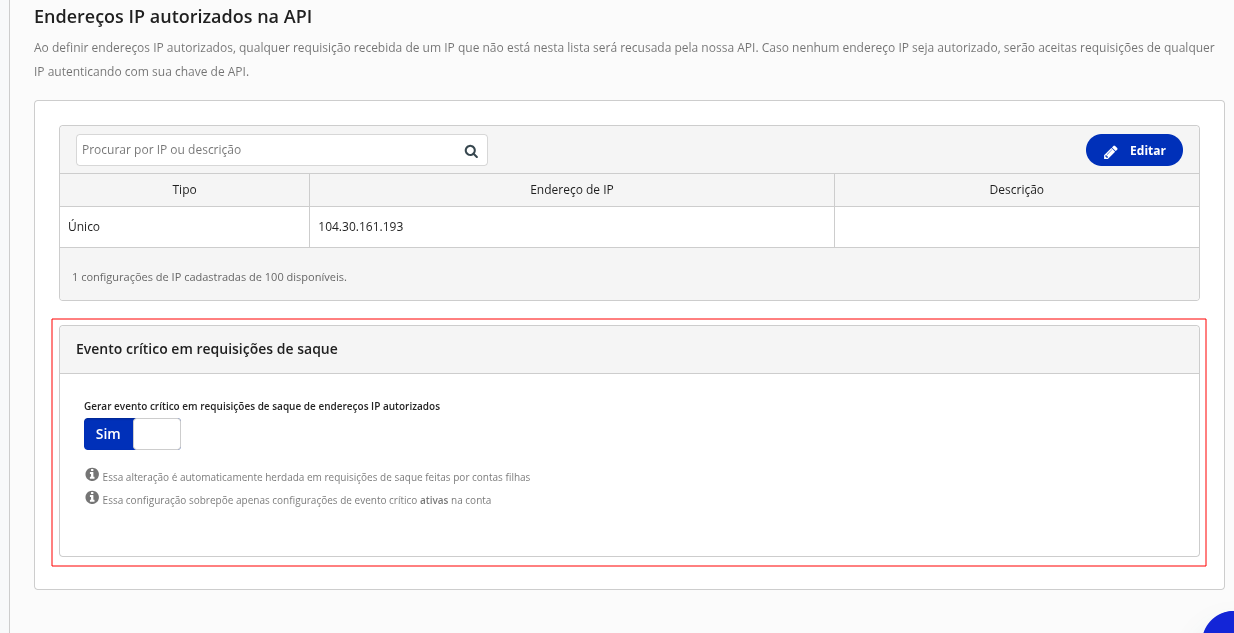
| Configuration | Behavior |
|---|---|
| Enabled | Operations continue to await manual approval, even when they originate from an authorized IP |
| Disabled | Operations originating from authorized IPs are processed without manual approval |
Protect automated withdrawalsDisabling the critical event removes a human approval step.
To keep an additional validation, configure the withdrawal authorization mechanism via Webhook.
Operations considered withdrawals
The configuration applies to:
- Pix and TED transfers;
- bill payments;
- mobile phone top-ups;
- Indirect Pix or Initiation authorizations;
- Pix refunds.
Subaccounts and configuration changes
The parent account's configuration is inherited by its subaccounts.
If the parent account disables the critical event for its IPs, subaccount operations originating from those same addresses may also be processed automatically.
For security reasons, changes to this configuration require token validation.
Need help with your architecture?
If your application cannot use a fixed outbound IP and a NAT Gateway is not suitable for your scenario, send the details through the form.
The information will be used by the Product team to evaluate security alternatives for these cases.
Next steps
Updated 14 days ago