
CloudFlare Firewall Blocking
CloudFlare is one of the most widely used Firewall solutions for websites worldwide.
If Webhooks return 403 Forbidden and your application uses Cloudflare, check whether the Firewall or WAF is blocking Asaas requests before they reach the endpoint.
The most common causes are WAF rules, Bot Protection, rate limiting, geographic blocks, IP restrictions, and User-Agent-related rules.
How the block affects the Webhook
When Cloudflare blocks the request, the flow may look like this:
%%{init: {"flowchart": {"nodeSpacing": 28,"rankSpacing": 32,"diagramPadding": 8,"padding": 10}}}%%
flowchart TD
    A["Asaas sends the Webhook"] --> B["Cloudflare receives the request"]
    B --> C["Block the request"]
    C --> D["Return HTTP 403"]
    D --> E["Apply penalty"]
    E --> F["Reach 15 consecutive failures"]
    F --> G["Interrupt the queue"]

    classDef inicio fill:#DBEAFE,stroke:#2563EB,color:#1E3A8A,stroke-width:3px,font-size:17px
    classDef validacao fill:#E0F2FE,stroke:#0284C7,color:#0C4A6E,stroke-width:2px,font-size:17px
    classDef sucesso fill:#DCFCE7,stroke:#16A34A,color:#14532D,stroke-width:3px,font-size:17px

    class A inicio
    class B,C,D,E,F validacao
    class G sucesso

    linkStyle default stroke:#94A3B8,stroke-width:2px
After 15 consecutive failures, the queue for that Webhook configuration is interrupted.
While it is interrupted, new events continue to be generated and stored. Pending events remain available for up to 14 days and may be permanently removed after that period.
Step-by-step video
1. Allow the official Asaas IPs
Open the settings for the domain used by your endpoint in Cloudflare.
Under Security > WAF, go to IP Access Rules and create rules allowing the official Asaas IPs.
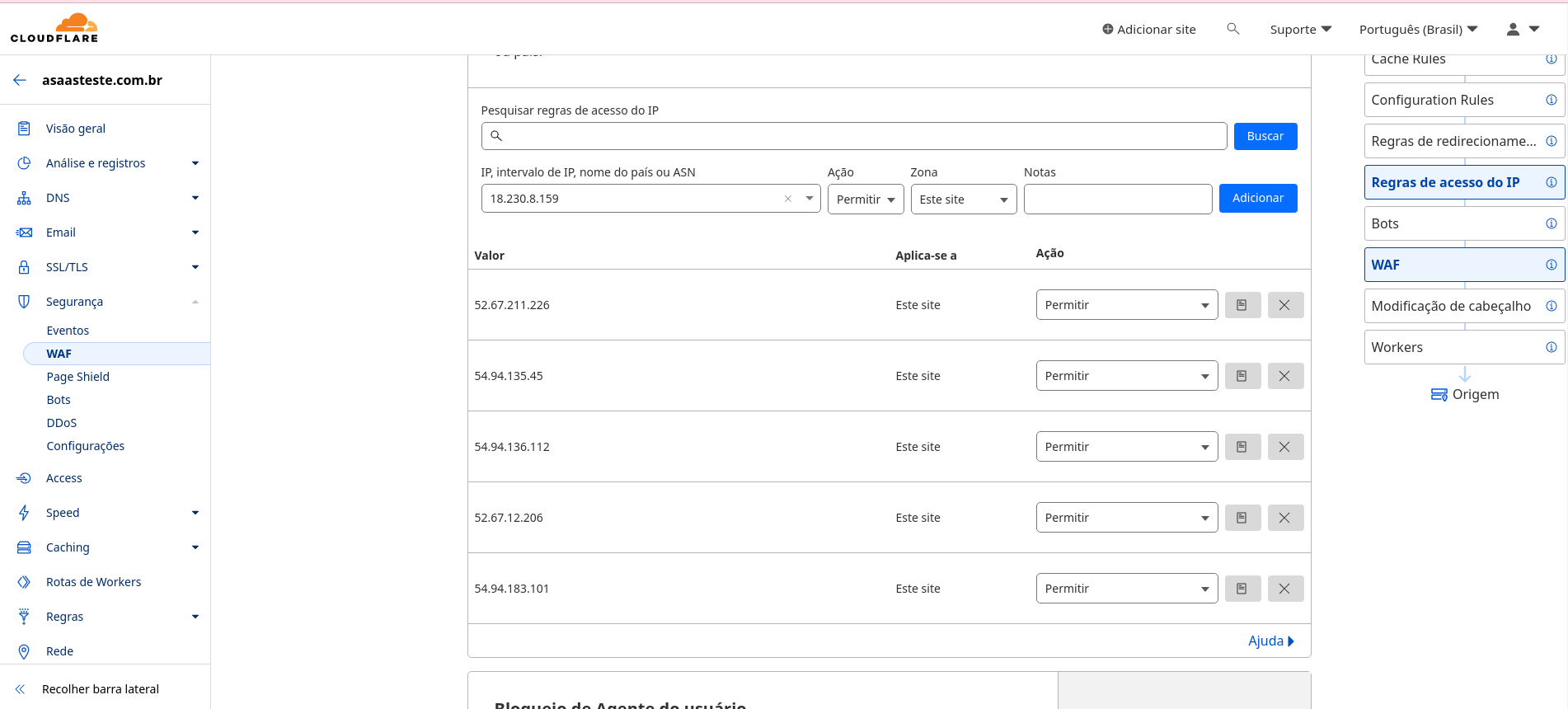
ImportantAfter allowing the IPs, the expected behavior is that Webhooks reach the application normally again and the 403 errors stop occurring.
Restrict the allowance to the traffic needed to receive Webhooks. Do not disable Firewall protections globally.
2. Identify the rule that is still blocking the request
If the 403 continues after allowing the IPs, check the Cloudflare security events.
Mainly check rules related to:
- WAF;
- Bot Protection;
- rate limiting;
- country or geolocation;
- User-Agent;
- custom Firewall rules.
Identify which rule caused the block and adjust only the condition needed to allow the Webhook endpoint.
3. Check the Sandbox
There may be additional IPs in the Sandbox environment.
If blocks still occur, go to:
Security > Events
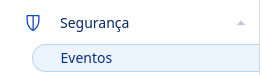
Find the blocked requests, copy the identified IPs, and add them to the Firewall access rules.
4. Validate the fix
After adjusting the Cloudflare rules:
- check the Webhook Logs;
- if the queue is interrupted, reactivate the configuration;
- generate or wait for a new event monitored by the Webhook;
- confirm that the request reached the application;
- check in the logs that the delivery no longer returns
403and now returnsHTTP 200.
There is no need to create a new Webhook. Fix the block and keep using the existing configuration.
If the 403 persists, see Error 403 (Forbidden) to investigate other security layers, such as authentication, internal validations, and origin restrictions.
Next steps
Updated 16 days ago