
How to reactivate an interrupted queue
Asaas automatically interrupts the queue of a Webhook configuration after 15 consecutive failures.
While the queue is interrupted, new events continue to be generated, but they are not sent until reactivation. Fix the cause of the failures before resuming deliveries.
AttentionReactivating the queue without fixing the cause of the problem will cause it to be interrupted again after new consecutive failures.
Before reactivating
With the queue interrupted:
- events are no longer sent to the application;
- new events continue to be generated and stored;
- synchronization of the integrated system is interrupted;
- events stored for more than 14 days are permanently deleted.
1. Check the Webhook Logs
Check the Webhook Logs to identify the cause of the failures.
Check:
- the HTTP code returned;
- the payload sent;
- the time of the attempt;
- the number of resends;
- the error message received by Asaas.
2. Fix the endpoint
Fix the identified problem before reactivating the queue.
The most common causes are:
| Problem | Where to investigate |
|---|---|
| URL or request rejected | Error 400 (Bad Request) |
| Firewall, WAF, or authentication blocking the call | Error 403 (Forbidden) |
| Nonexistent URL or route | Error 404 (Not Found) |
| Endpoint takes too long to respond | Error 408 - Read Timed Out |
| Internal application failure | Error 500 (Internal Server Error) |
| The connection could not be established | Connect Timed Out Error |
| Other behavior | Other errors |
If the problem is related to the firewall, also see Official Asaas IPs and CloudFlare Firewall Blocking.
The endpoint must be available and return HTTP 200 for the Webhook delivery to be considered successful.
ImportantThe queue should only be reactivated after the failure has been fixed, ensuring the application is ready to receive new events.
3. Reactivate the queue
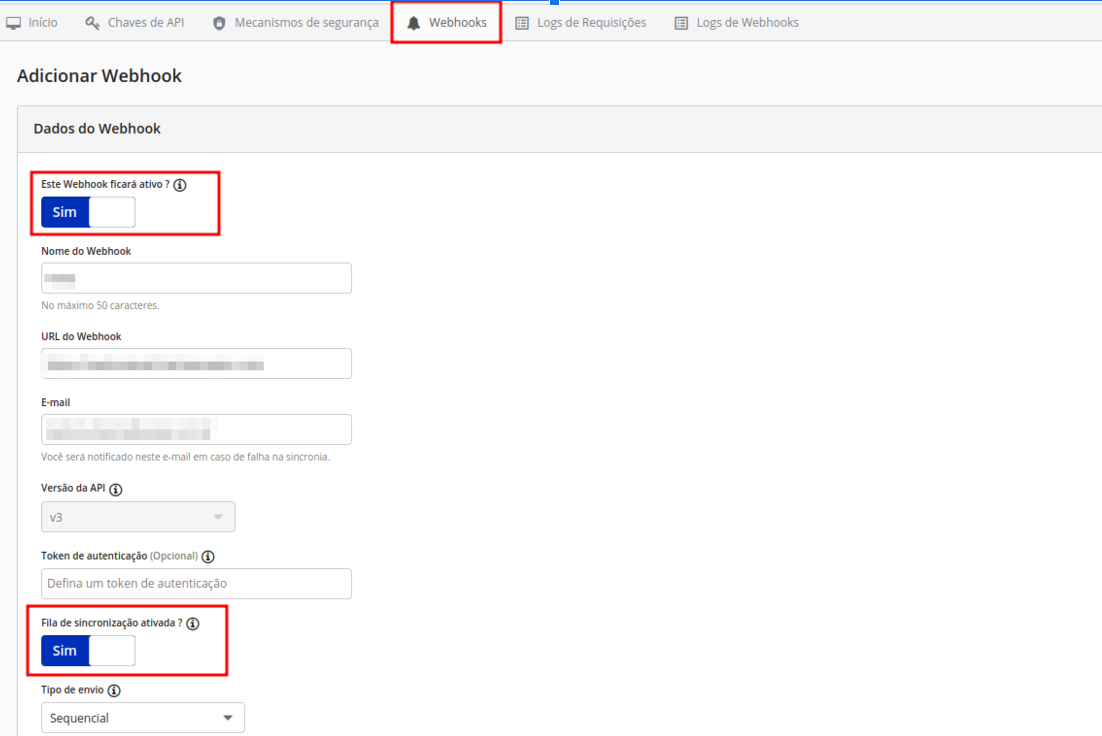
You can reactivate the configuration via the web application or the API.
Via the web application
Go to:
User menu → Integrations → Webhooks
Find the interrupted configuration and reactivate the queue.
Via the API
Update the Webhook:
PUT /v3/webhooks/{id}Send interrupted as false:
{
  "interrupted": false
}
An HTTP 200 response confirms the configuration update.
See the Update existing webhook endpoint.
Recovery flow
%%{init: {"flowchart": {"nodeSpacing": 28,"rankSpacing": 32,"diagramPadding": 8,"padding": 10}}}%%
flowchart TD
A["Consecutive failures"] --> B["Queue interrupted"]
B --> C["Check the logs"]
C --> D["Identify the problem"]
D --> E["Fix the application"]
E --> F["Reactivate the queue"]
F --> G["Resend accumulated events"]
G --> H["Synchronization back to normal"]

classDef inicio fill:#DBEAFE,stroke:#2563EB,color:#1E3A8A,stroke-width:3px,font-size:17px
classDef validacao fill:#E0F2FE,stroke:#0284C7,color:#0C4A6E,stroke-width:2px,font-size:17px
classDef sucesso fill:#DCFCE7,stroke:#16A34A,color:#14532D,stroke-width:3px,font-size:17px

class A inicio
class B,C,D,E,F,G validacao
class H sucesso

linkStyle default stroke:#94A3B8,stroke-width:2px
Validate the reactivation
After reactivating:
- generate or wait for a new event monitored by the Webhook;
- confirm receipt at your endpoint;
- check the Webhook Logs;
- verify that new deliveries return
HTTP 200.
Events that remained stored will also be sent again after reactivation.
We recommend
- Monitoring the logs periodically.
- Implementing idempotency to support resends.
- Processing events asynchronously.
- Ensuring the endpoint responds quickly.
- Always returning HTTP 200 after processing the event.
- Checking that the firewall is not blocking Asaas IPs.
- Not reactivating the queue without fixing the cause of the failure.
ImportantIf you have just created a new webhook and it already appears as interrupted, check whether the configuration's synchronization queue is active.
Next steps
Updated 14 days ago