
Automatic Pix
Get to know Automatic Pix
Automatic Pix lets you make recurring charges via Pix after prior authorization from the payer.
Once the authorization is activated, subsequent payments can be processed without a new authorization for each cycle. Charges can be created manually or automatically, depending on the mode defined in the authorization.
By the end of this guide, you will understand the Automatic Pix journey and be able to choose how recurring charges will be created.
When to use
Use Automatic Pix when your operation needs to:
- make recurring charges via Pix;
- obtain prior authorization from the payer;
- process subsequent payments without a new manual confirmation;
- choose between creating the charges through your application or generating them automatically.
To compare this model with Subscriptions, see Difference between Automatic Pix and Subscriptions.
How it works
Integration through the Asaas API uses Journey 3.
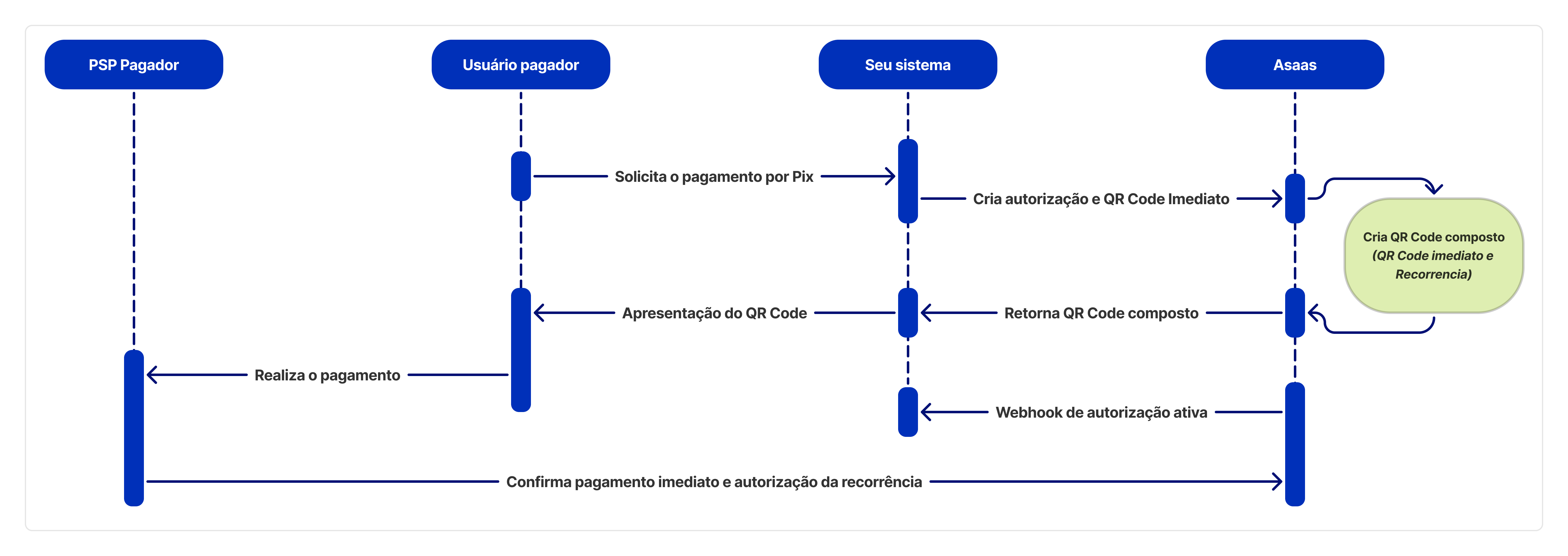
In the first payment, the QR Code combines:
- the payment of the initial charge;
- the authorization for subsequent payments.
After the initial payment, the payer's institution sends Asaas the authorization confirmation. With this confirmation, the authorization moves to ACTIVE and can be used in subsequent cycles. If the confirmation is not sent, the authorization is refused, even if the initial payment was received. See Automatic Pix Webhook Flows.
First payment
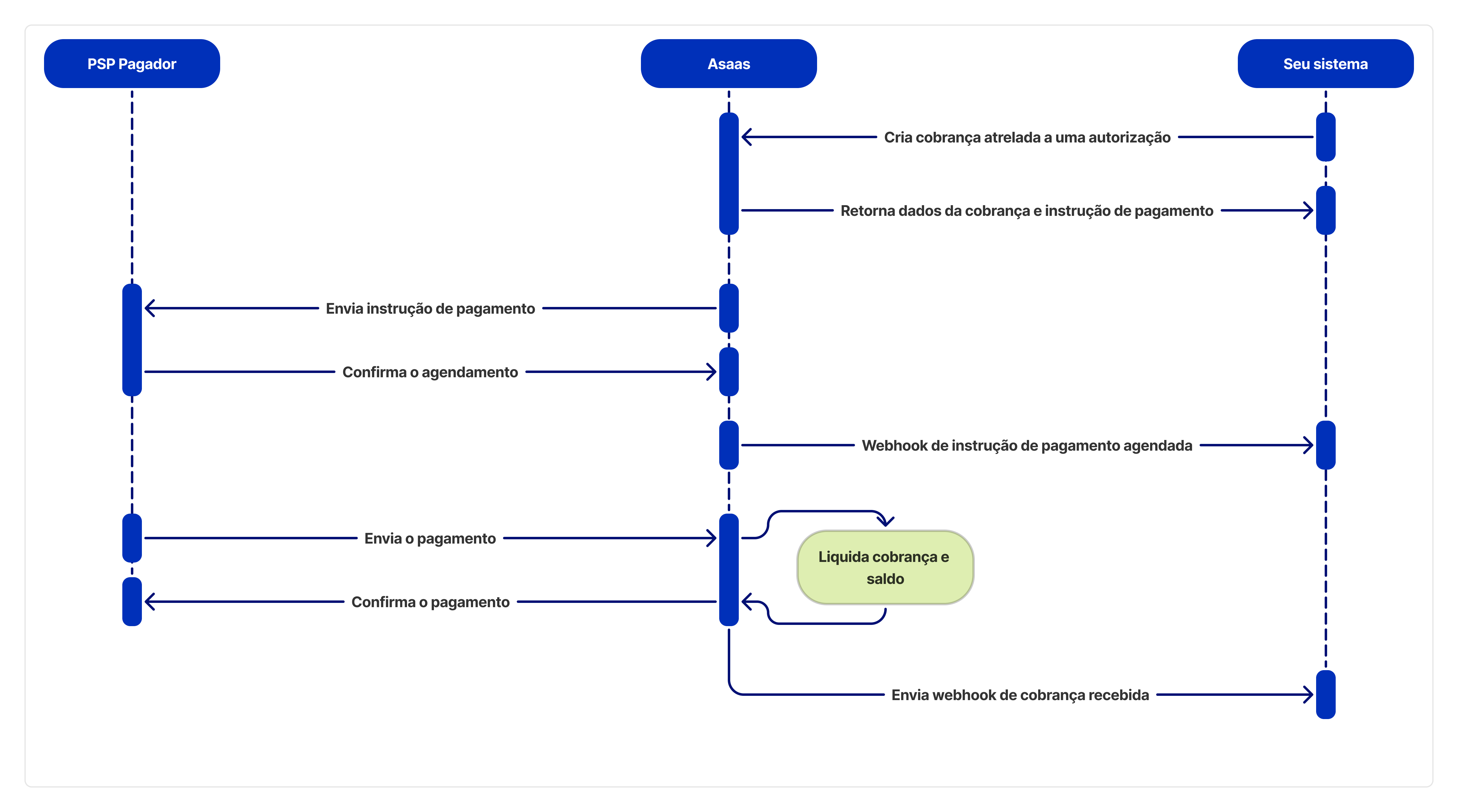
Recurring payments
Choose how to create recurring charges
When creating the authorization, the paymentCreationMode field defines who will be responsible for the charges of subsequent cycles.
| Mode | How it works |
|---|---|
MANUAL | Your application creates each recurring charge through the API |
SUBSCRIPTION | Charges are generated automatically by a subscription |
MANUAL is the default mode.
When using SUBSCRIPTION, also provide the value field to configure the amount of the charges.
See the authorization creation reference.
Automatic Pix journey
%%{init: {"flowchart": {"nodeSpacing": 28,"rankSpacing": 32,"diagramPadding": 8,"padding": 10}}}%%
flowchart TD
    A["Create authorization"] --> B["Present the QR Code"]
    B --> C["Payer makes the first payment"]
    C --> C2["Payer's institution<br/>confirms the authorization"]
    C2 --> D["Authorization becomes ACTIVE"]
    D --> E{"How will the charges be created?"}

    E --> EManual(("MANUAL"))
    E --> EAutomatico(("SUBSCRIPTION"))

    EManual --> F["Application creates each charge"]
    EAutomatico --> G["Subscription generates the charges"]

    F --> H["Process the debits via Pix"]
    G --> H
    H --> I["Track the events via Webhook"]

    classDef inicio fill:#DBEAFE,stroke:#2563EB,color:#1E3A8A,stroke-width:3px,font-size:17px
    classDef decisao fill:#FEF3C7,stroke:#D97706,color:#78350F,stroke-width:3px,font-size:17px
    classDef validacao fill:#E0F2FE,stroke:#0284C7,color:#0C4A6E,stroke-width:2px,font-size:17px
    classDef sucesso fill:#DCFCE7,stroke:#16A34A,color:#14532D,stroke-width:3px,font-size:17px

    classDef respostaManual fill:#8B5CF6,stroke:#6D28D9,color:#FFFFFF,stroke-width:3px,font-size:16px
    classDef respostaAutomatico fill:#22C55E,stroke:#15803D,color:#FFFFFF,stroke-width:3px,font-size:16px

    class A inicio
    class E decisao
    class B,C,C2,D,F,G,H validacao
    class I sucesso

    class EManual respostaManual
    class EAutomatico respostaAutomatico

    linkStyle default stroke:#94A3B8,stroke-width:2px
    linkStyle 5 stroke:#8B5CF6,stroke-width:4px
    linkStyle 6 stroke:#22C55E,stroke-width:4px
To create the authorization and configure how charges are generated, see Automatic Pix Implementation.
What your integration needs to track
Regardless of the chosen mode, track:
- the authorization status;
- charge processing;
- refusals, cancellations, and failures;
- the events sent via Webhook.
In MANUAL mode, your application also needs to control the creation of the charges for each cycle.
See Automatic Pix Webhook Flows to learn the expected sequences.
When an instruction is refused, see Refusal Reasons.
Retries
Automatic Pix lets you configure retries for certain payment failure scenarios.
The rules and implementation of this flow are in Retry process — Journey 3 API.
Next steps
Updated 14 days ago