
Product Registration/Linking
Register and link products between WooCommerce and Base ERP
Register in Base ERP the products sold in WooCommerce and link each item by the Internal Product Identifier.
This link allows Base ERP to identify the corresponding product during the NF-e issuance flow.
ImportantWooCommerce should be treated as the main source for inventory control in this version of the plugin.
Registering the product in Base ERP is required to enable the NF-e issuance flow, but it does not replace the operational inventory control performed in WooCommerce.
Before you start
Confirm that:
- the NF-e Issuer for WooCommerce is installed and configured;
- WooCommerce is connected to the correct Base ERP environment;
- you have access to product registration in Base ERP;
- the products to be linked already exist in WooCommerce.
If you have not yet configured the integration, see Installation/Configuration.
How the link works
%%{init: {"flowchart": {"nodeSpacing": 18,"rankSpacing": 24,"diagramPadding": 4,"padding": 7}}}%%
flowchart TD
A["Register the product in Base ERP"] --> B["Review the tax data"]
B --> C["Copy the Internal Identifier"]
C --> D["Open the product in WooCommerce"]
D --> E["Enter the Base ERP ID"]
E --> F["Save the product"]
F --> G["Validate the link"]

classDef inicio fill:#DBEAFE,stroke:#2563EB,color:#1E3A8A,stroke-width:3px
classDef validacao fill:#E0F2FE,stroke:#0284C7,color:#0C4A6E,stroke-width:2px
classDef sucesso fill:#DCFCE7,stroke:#16A34A,color:#14532D,stroke-width:3px

class A inicio
class B,C,D,E,F validacao
class G sucesso

linkStyle default stroke:#94A3B8,stroke-width:2px
Understand which system controls each piece of information
In this version of the plugin, products and inventory are not automatically synchronized between WooCommerce and Base ERP.
| Information | System responsible |
|---|---|
| Inventory control | WooCommerce |
| Product availability in the store | WooCommerce |
| Product tax record | Base ERP |
| Data used to issue the NF-e | Base ERP |
| Link between the product sold and the tax record | WooCommerce and Base ERP |
Inventory in Base ERPWhen registering a product in Base ERP, you can leave the inventory at zero.
This does not prevent invoices from being issued, since inventory control does not affect this step in this version of the plugin.
Product or inventory changes made in one system do not automatically update the other.
1. Register the product in Base ERP
In Base ERP:
- Go to Commercial > Products and Services.
- Click Add Product/Service.
- Fill in the required information and the data needed to issue the NF-e.
Required fields are identified by the paper icon next to the field name.
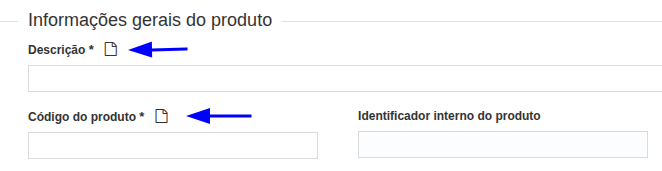
TipAlso check the Inventory, Tax, Composition, and Attachments tabs.
The product's tax information must be correct to avoid inconsistencies when issuing the NF-e.
Click Save to complete the registration.
2. Find the Internal Product Identifier
After saving the product, Base ERP automatically generates the Internal Product Identifier.
Find this field and copy the number.
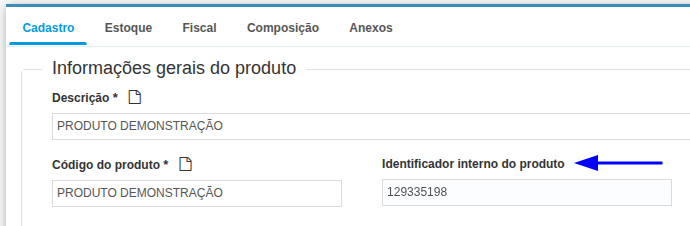
This is the identifier used to relate the Base ERP tax record to the product sold in WooCommerce.
3. Link the product in WooCommerce
In WordPress:
- Go to Products > All Products.
- Open the corresponding product.
- In Product Data, select the Base ERP section.
- Enter the Internal Product Identifier copied from Base ERP.
- Click Update.
If you are creating a new product in WooCommerce, use Add Product and click Publish after filling in the ID.
Expected result
The WooCommerce product should be related to the corresponding record in Base ERP through the Internal Product Identifier.
This link allows the item sold to be identified in the NF-e issuance flow.
Review the product data
Before testing issuance, check:
| Field or attribute | Where to check | Use |
|---|---|---|
| Product name | WooCommerce and Base ERP | Helps verify the corresponding product. |
| SKU | WooCommerce and Base ERP, when used | Makes identification and operational checks easier. |
| Internal Product Identifier | Base ERP | Creates the link with WooCommerce. |
| Tax data | Base ERP | Used in the NF-e issuance flow. |
| CFOP | Base ERP | Must match the tax operation. |
| Taxes | Base ERP | Must be configured correctly for issuance. |
| Item type | Base ERP | Classifies the registered product or service. |
| Corresponding product | WooCommerce | Must receive the ID of the correct record in Base ERP. |
Best practiceThe Internal Product Identifier is the main field for the link with WooCommerce.
Fields such as name and SKU help with verification, but do not replace the link by the Base ERP internal product ID.
Process summary
Validate before using in Production
Run the test in the Sandbox and confirm that:
- the product sold is registered in Base ERP;
- the Internal Product Identifier entered in WooCommerce matches the correct product;
- the tax data has been reviewed in Base ERP;
- products with variations are linked to the corresponding record;
- the product is correctly identified in the NF-e issuance flow.
AttentionUntil there is automatic synchronization, keep an internal record of the products already registered and linked.
This helps avoid duplicate records, incorrect links, and NF-e issuance failures.
Common errors
| Situation | Possible cause | What to do |
|---|---|---|
| Product does not appear in Base ERP | Product has not been registered yet | Register the item in Commercial > Products and Services. |
| Product is not identified during issuance | Missing or incorrect link | Check the Internal Identifier entered in WooCommerce. |
| Inventory differs between the systems | There is no automatic synchronization | Keep inventory control in WooCommerce. |
| NF-e shows incorrect data | Incomplete or incorrect tax record | Review the tax information in Base ERP. |
| Product is duplicated in Base ERP | The item was registered more than once | Review the existing products before creating another record. |
| Variation is linked incorrectly | ID entered on the wrong item | Confirm that the ID matches the expected product or variation. |
Next steps
Updated 3 days ago