
WooCommerce Webhooks
Monitor the WooCommerce Webhooks
The Asaas Plugin uses Webhooks to keep WooCommerce orders synchronized with charge changes in Asaas.
Use this synchronization to update orders without periodic API queries.
Automatic configurationStarting with Asaas Plugin version 2.5, no manual configuration is required.
When you enter a valid API Key in the plugin settings, the Webhook is created and configured automatically in your Asaas account.
How it works
%%{init: {"flowchart": {"nodeSpacing": 18,"rankSpacing": 24,"diagramPadding": 4,"padding": 7}}}%%
flowchart TD
A["Charge is updated in Asaas"] --> B["Asaas sends the Webhook"]
B --> C["Plugin receives the event"]
C --> D["Update the order in WooCommerce"]

classDef inicio fill:#DBEAFE,stroke:#2563EB,color:#1E3A8A,stroke-width:3px
classDef validacao fill:#E0F2FE,stroke:#0284C7,color:#0C4A6E,stroke-width:2px
classDef sucesso fill:#DCFCE7,stroke:#16A34A,color:#14532D,stroke-width:3px

class A inicio
class B,C validacao
class D sucesso

linkStyle default stroke:#94A3B8,stroke-width:2px
If an order is not updated after a change in the charge, check the Webhook queue first.
Check the queue status
Through the WooCommerce status
Go to:
WooCommerce > Status
Locate the Meio de Pagamentos Asaas section.
In this area you can check:
- the status of the connection with Asaas;
- the status of the Webhook queue;
- the Re-enable webhook queue option, when the queue is interrupted.
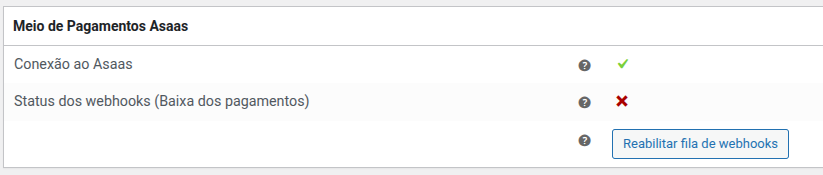
When synchronization is working, the connection and the queue will be displayed as active.
Through the payment method
The status can also be checked in the Webhook section of the settings of any Asaas Plugin payment method.

In this setting, also provide an email address to receive alerts related to queue interruption.
Email for alertsWe recommend providing an email address monitored by the team responsible for the store's operation.
If the Webhook queue is interrupted due to an error, this address will be used to send automatic notifications.
Recover an interrupted queue
When synchronization is interrupted:
- the queue status will be displayed as interrupted;
- the Re-enable webhook queue option will become available;
- a warning will be displayed on the WooCommerce Orders screen;
- the Webhook section of the payment methods will also indicate the interruption.
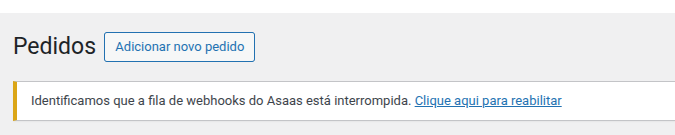
Before reactivating the queue:
- Go to the Webhook Logs.
- Identify the HTTP code, the error message, and the delivery attempts.
- Fix the cause of the failure.
- Go back to WooCommerce and click Re-enable webhook queue.
- Confirm that the queue is back to the active state.
If the queue remains interrupted, review the logs again and see Common errors.
Expected result
After the fix and reactivation:
- the queue should return to the active state;
- the Re-enable webhook queue option should no longer be displayed;
- new events should once again update orders in WooCommerce.
Recommendations
- keep a valid API Key configured;
- provide an email address to receive alerts;
- periodically check the connection status in WooCommerce > Status;
- re-enable the queue whenever there is an interruption;
- check the Webhook Logs if the queue remains interrupted after reactivation;
- always keep the Asaas Plugin up to date to benefit from the latest improvements and fixes.
Continue the configurationAfter understanding how Webhooks work, also see:
- Initial settings
- Payment method
- Common errors
- How to view Webhook Logs
Next steps
Updated 3 days ago