
Flapp Store
Flapp Store is the Asaas app store, where you can find and subscribe to applications that integrate with your Asaas account. Here are some questions that may come up about our app store.
Understand Flapp Store subscriptions and permissions
Flapp Store brings together apps integrated with your Asaas account. Each Flapp has its own features, plans, and permissions.
When subscribing to an app, review the plan, the terms, and the account resources that will be authorized for the integration.
How do I subscribe to a Flapp?
In your Asaas account:
- go to Flapp Store;
- choose the app;
- check the features, plans, and prices;
- select the plan;
- click Quero contratar (I want to subscribe);
- review the subscription details.
When the Flapp needs to access resources in your Asaas account, the required permissions will be shown in the confirmation:
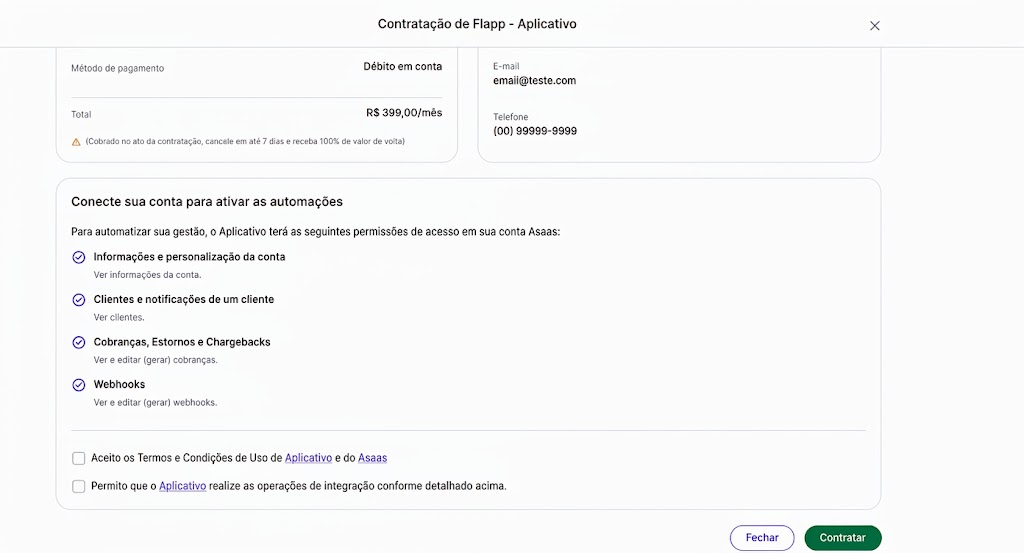
If you agree, check the two checkboxes shown and click Contratar (Subscribe).
After subscribing, the Flapp will be available for use according to the selected plan.
What are permissions?
Permissions define which resources of your Asaas account the app can use.
Depending on the Flapp's features, it may request access to:
- retrieve customers;
- retrieve charges;
- create charges;
- retrieve payments;
- retrieve account information.
The app's access is limited to the authorized permissions.
Why are permissions necessary?
Some features depend on the Asaas API to retrieve information or perform operations on your account.
For example, a Flapp that retrieves charges needs access to that resource. If it also starts working with customers, it may need an additional permission.
Before authorizing, check the requested resources and confirm that they correspond to the features you intend to use.
I have already subscribed to the Flapp and there are pending permissions. What should I do?
Previously subscribed apps may show pending permissions if they start using the API or receive features that depend on new account resources.
In your Asaas account, go to:
Flapp Store → Meus Flapps (My Flapps) → Gerenciar assinatura (Manage subscription)
Find the app and follow the instructions to authorize the pending permissions.
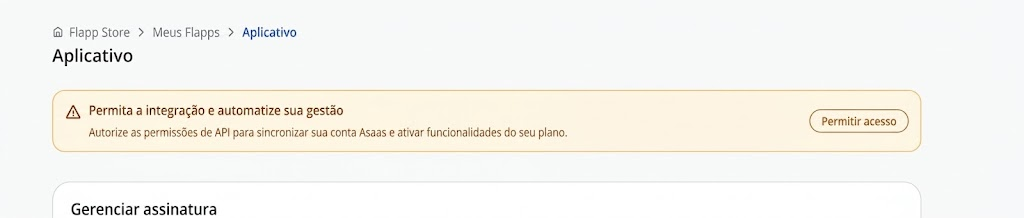
After authorization, the app will be able to use the granted resources.
Why might a Flapp request a new permission?
This can happen when the app receives a feature that depends on another resource of your Asaas account.
For example, a Flapp that already retrieves charges may start offering a feature that also retrieves customers. In this case, the new permission will be presented for authorization.
A new request does not necessarily mean there was a problem with the subscription.
What happens if I do not authorize a new permission?
The feature that depends on the new permission may be unavailable while the authorization is pending.
Features that already have the necessary permissions can continue to work normally.
If you do not recognize the purpose of a permission, contact the app's support before authorizing it.
Can I remove a permission individually?
The requested permissions are part of the integration required for the Flapp to work.
It is not possible to remove a permission individually and still normally use a feature that depends on that access.
If you no longer want to use the app, cancel the subscription in the Meus Flapps (My Flapps) area.
Can the app access my entire account?
No.
The app can only use the resources authorized during subscription or in subsequent authorizations.
API calls made on behalf of the integration are limited to the permissions granted to the Flapp.
How is the Flapp billed?
Payment is debited directly from the Asaas account balance.
When subscribing, the plan price is debited after confirmation. After that, charges follow the recurrence defined in the plan.
If there is not enough balance, access to the Flapp may be suspended. When the balance is restored, a new charge attempt may be made to reactivate access.
How do I change the plan?
Go to:
Flapp Store → Meus Flapps (My Flapps) → Gerenciar assinatura (Manage subscription)
Upgrade
Changing to a higher plan can be done during the current cycle.
The difference is calculated proportionally to the plan prices and the remaining period of the cycle. The new plan takes effect after the debit.
If the upgrade is canceled within the applicable seven-day period, the difference paid may be refunded.
Downgrade
Changing to a lower plan is scheduled for the next renewal.
The current plan remains available until the end of the current cycle, and amounts already paid are not refunded.
How do I cancel a Flapp?
In your Asaas account:
- go to Flapp Store;
- open Meus Flapps (My Flapps);
- find the app;
- click Gerenciar assinatura (Manage subscription);
- select Cancelar (Cancel);
- click Continuar cancelamento (Continue cancellation);
- provide the reason.
If you are in a trial period, no charge will be made.
When the cancellation occurs during a period that has already been paid, the Flapp remains available until the end of that cycle. There is no proportional refund for the remaining period, unless a specific refund condition applies.
After it ends, the subscription is no longer renewed.
Where can I get help?
The channel depends on the question:
- Flapp Store, subscription, plan, or billing: contact Asaas support;
- app features, configuration, or usage: contact the support of the partner responsible for the Flapp.
The partner's channels are provided in the app itself or during subscription.
Next steps
- To subscribe to another app, go to Flapp Store in your Asaas account.
- To check your apps, plans, and due dates, go to Flapp Store → Meus Flapps (My Flapps).
- To change or cancel a subscription, open Meus Flapps → Gerenciar assinatura (My Flapps → Manage subscription).
Updated 22 days ago